Create
The Create tab prepares and assigns files to be QCed by selecting, or creating, milestones and adding review checklists, relevant files, reviewers, and collaborators to selected files.
Layout
Section titled “Layout”The Create tab has two main areas:
- Left sidebar — choose whether to use an existing milestone or create a new one, then submit the queued issues
- Main panel — shows existing issues for the selected milestone and any items you have queued for creation
Milestone Controls
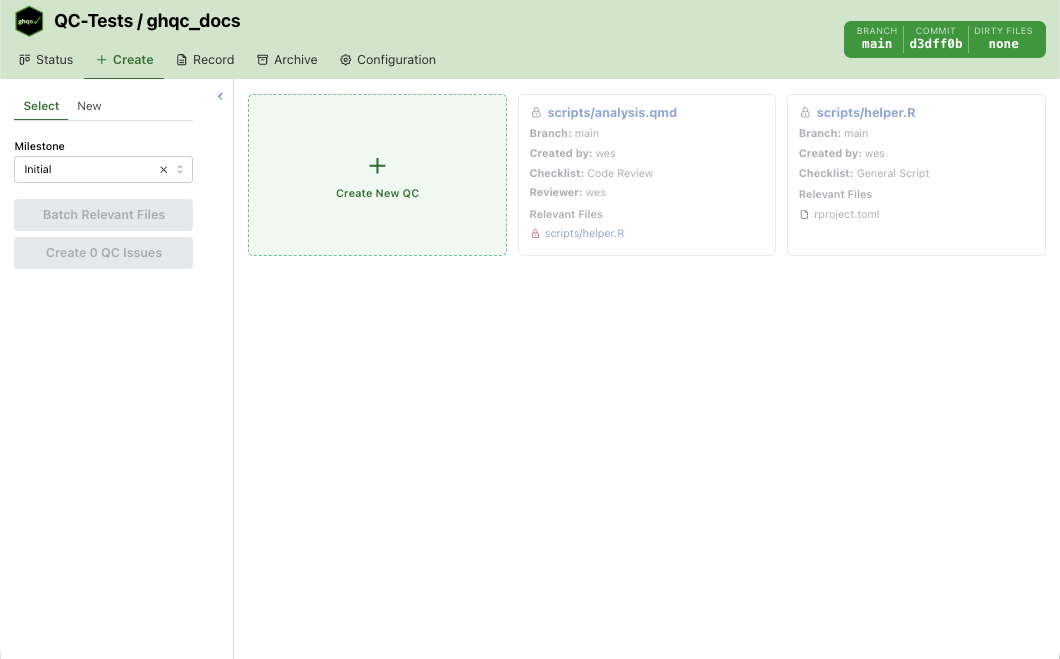
Section titled “Milestone Controls”In Select mode, selecting from the existing open milestones is required before you can add files. Each milestone option shows the count of open and closed issues.
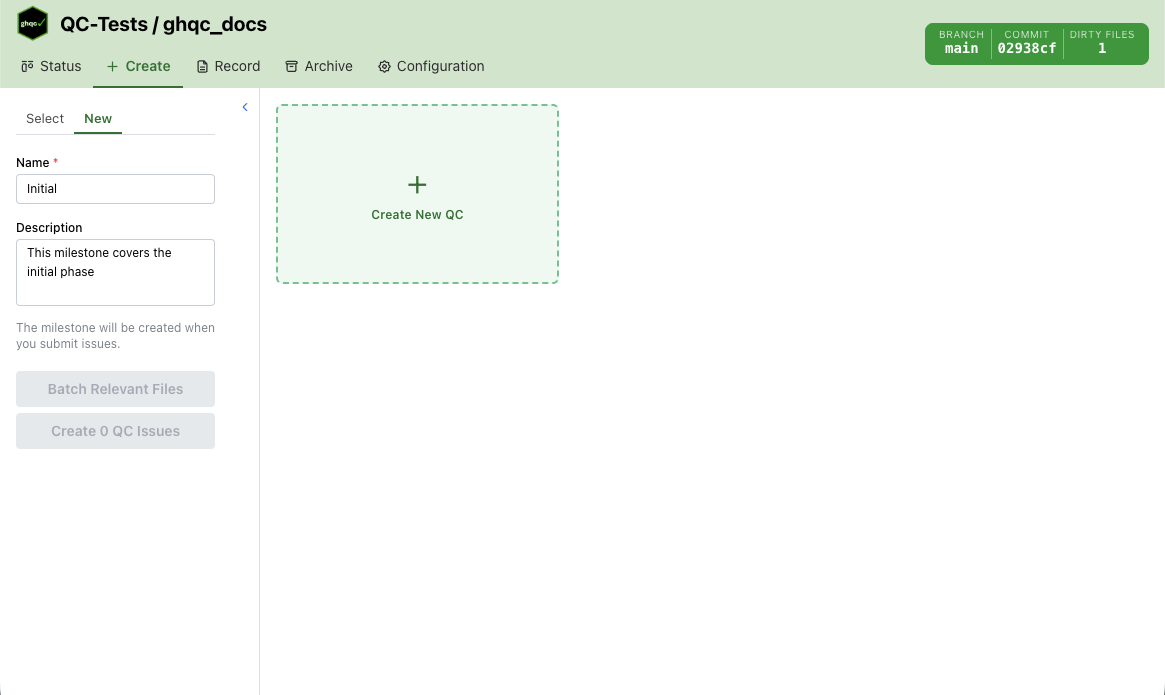
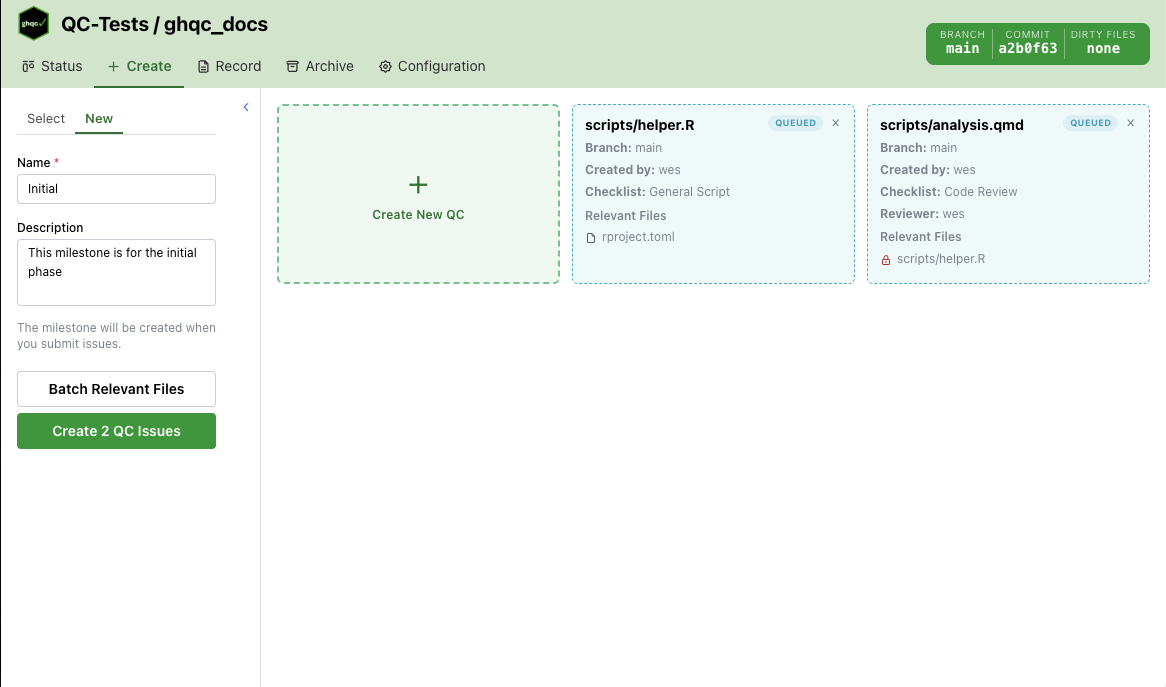
In New mode, the add card is available immediately. Must provide a new, unique milestone name, an optionally a description, before issue creation is active.
Create QC Issue Modal
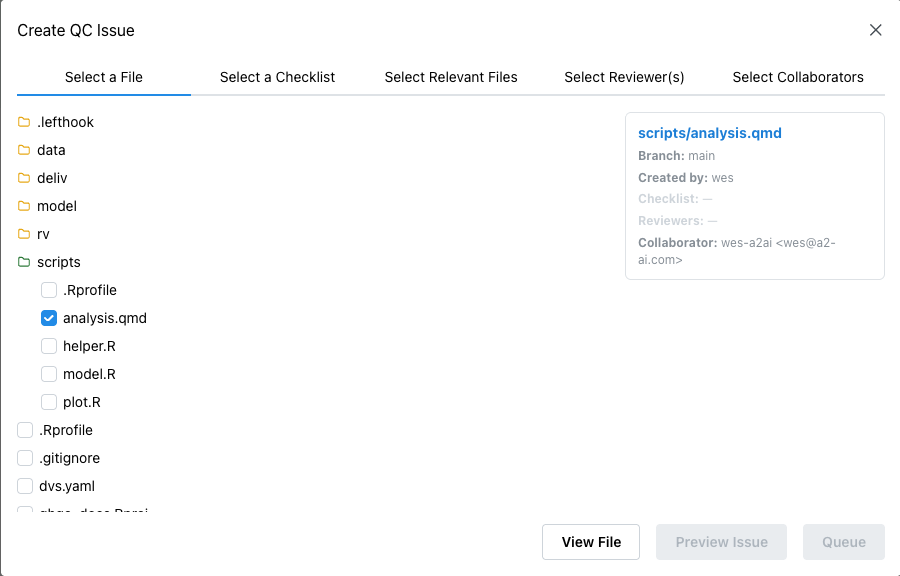
Section titled “Create QC Issue Modal”Clicking Create New QC opens a modal with a live preview card on the right and a set of workflow tabs on the left. The preview updates as you fill in the issue details.
Select a File
Section titled “Select a File”This tab shows a file tree for the current repository.
- Each QC issue is tied to exactly one file
- Files already claimed by the selected milestone or already queued in the current batch are disabled
- The selected file becomes the issue title
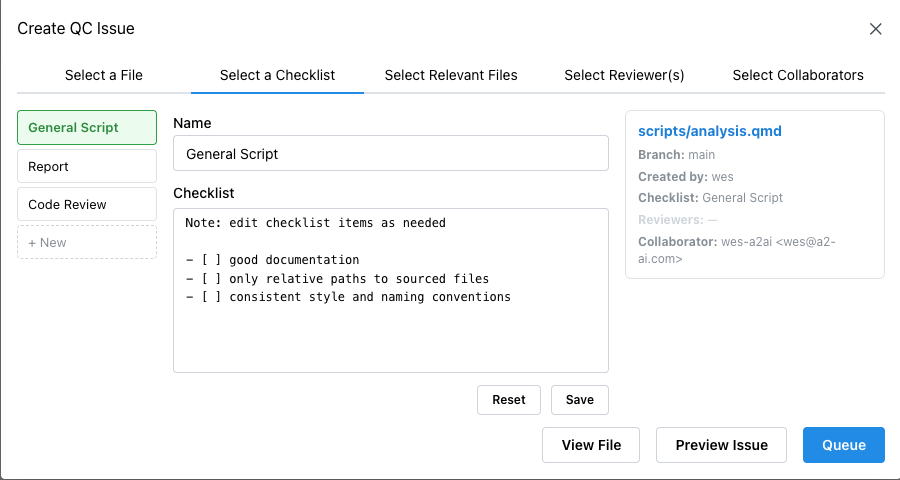
Select a Checklist
Section titled “Select a Checklist”This tab attaches the checklist template used for the QC.
- Built-in checklist tabs come from the configuration repo
- You can create a custom checklist tab, edit its content, and save it
- Saved custom checklist tabs persist while you remain in the Create tab
- A file cannot be queued until both a file and a checklist are selected
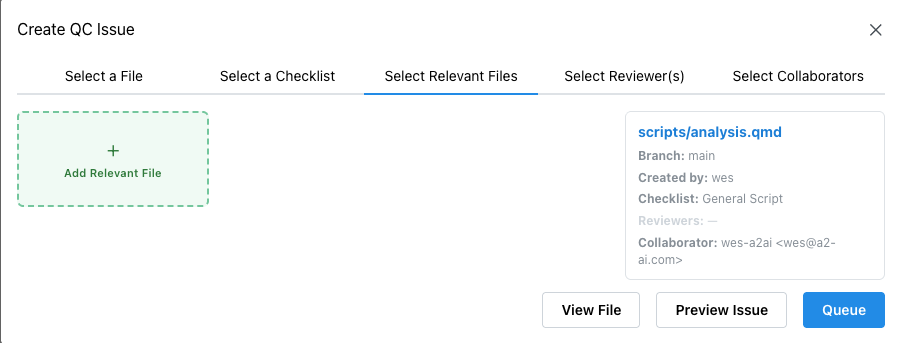
Select Relevant Files
Section titled “Select Relevant Files”This tab attaches supporting references for reviewer context. Clicking Add Relevant Files opens another modal with a file tree, an issue dropdown, relevant file type dropdown, and a description.
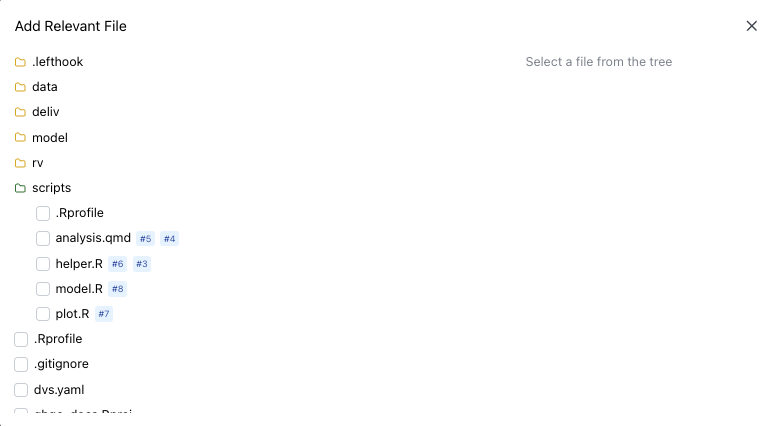
A file tree containing the issue numbers for issues which correspond to the file.
After a file has been selected, the right side populates for selecting relevant files.
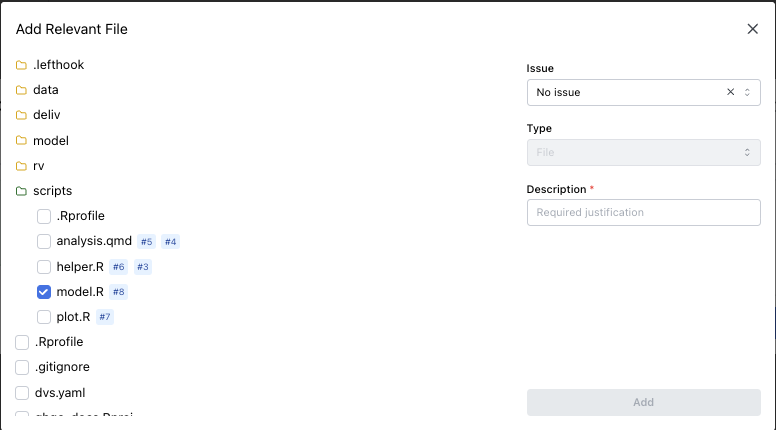
If a selected file does not have a corresponding issue, it auto-populates by selecting No Issue and setting the type to “File”.
If a selected file does have a corresponding issue, you have the option to select an existing issue, a queued QC (if it exists), or No Issue.
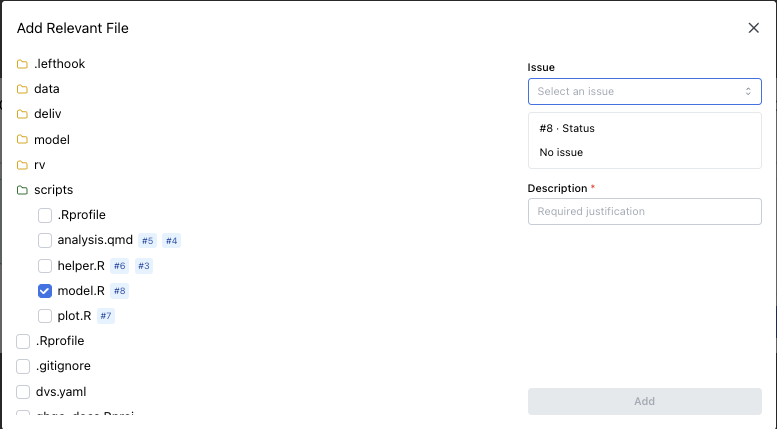
After selecting an issue, the following options are available to classify the relevant issue:
- Gating QC — a blocking QC that must be approved first
- Previous QC — a prior QC of the same or similar work; treated as blocking and defaults to posting an automatic diff comment to the new issue
- Relevant QC — informational only
If No Issue is selected, File is auto-selected:
- File — a plain file reference with no QC issue attached
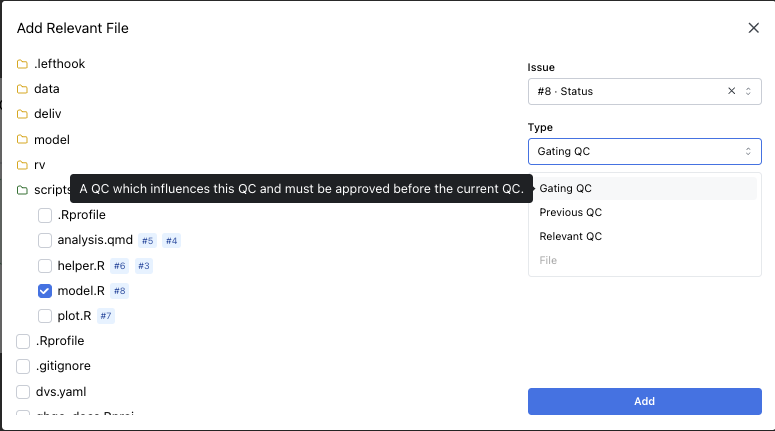
If an issue is selected, you may optionally add a description to relevant file.
If no issue is selected, the description is required to justify why the file is not QCed.
Select Reviewer(s)
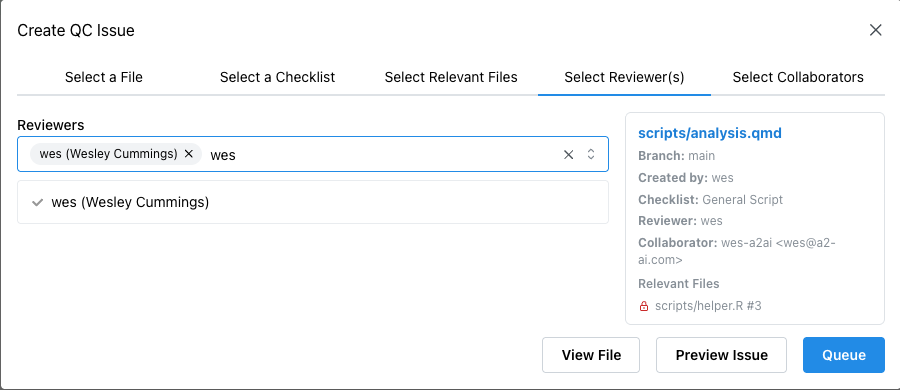
Section titled “Select Reviewer(s)”This tab optionally assigns one or more GitHub users to the issue at creation time. If no reviewers are selected, the issue can still be created normally.
Select Collaborators
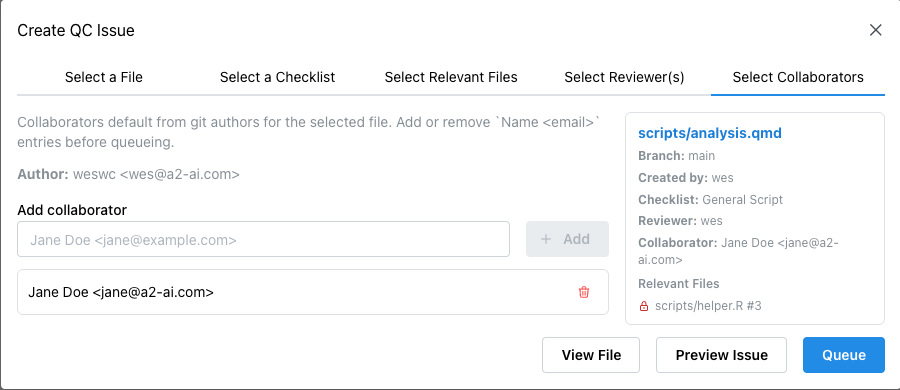
Section titled “Select Collaborators”When collaborator support is enabled, the modal also includes a collaborator tab.
This tab:
- shows the detected
authorfor the selected file separately - loads collaborator defaults from the file’s git author history
- lets you remove detected collaborator entries
- lets you add additional
Name <email>entries before queueing
Collaborators appear in the preview card and are carried into the queued issue.
Modal Actions
Section titled “Modal Actions”The footer provides three actions:
- View File — opens the selected file in a read-only preview modal
- Preview Issue — renders the GitHub issue body before submission
- Queue or Update — adds the issue to the batch, or updates an existing queued item when editing
Queue and Conflict Handling
Section titled “Queue and Conflict Handling”Queued issues appear as editable cards in the main panel.
Each card shows:
- file path
- branch
- current user as the issue creator
- selected checklist
- assigned reviewers
- collaborators, when present
- relevant files
Queued cards also surface warnings:
- Red conflict state — the file already has an issue in the selected milestone, or the same file is queued more than once
- Yellow dirty-file state — the queued file has uncommitted local changes
Conflicts disable the Create button until resolved.
Batch Relevant Files
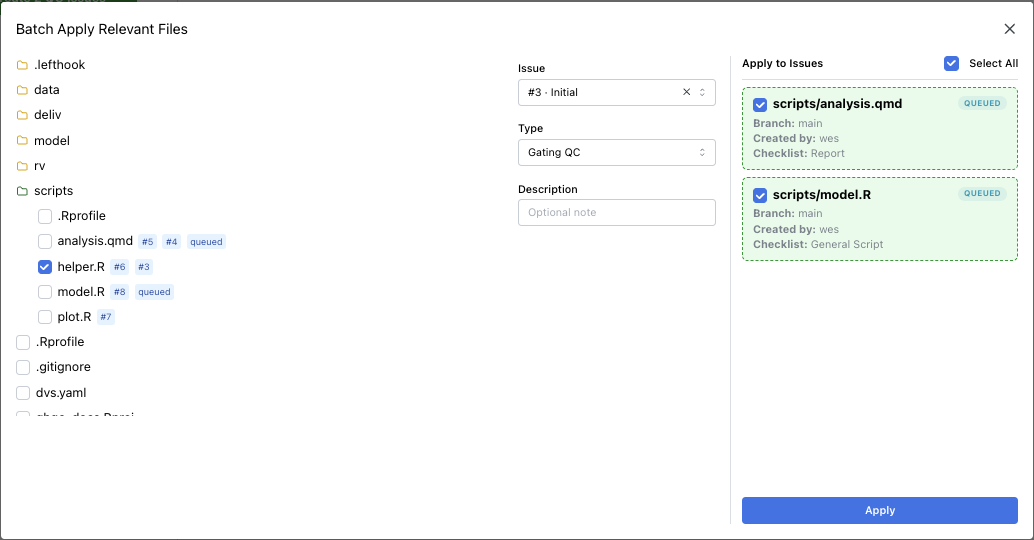
Section titled “Batch Relevant Files”If at least one issue is queued, the sidebar enables Batch Relevant Files.
This opens a modal where you can:
- choose one file or QC reference
- choose its relationship type
- select any subset of queued issues, or all of them
- apply that relevant file to the selected queued items in one step
The batch tool skips queued items that already contain that file as a relevant reference.
Submission Rules
Section titled “Submission Rules”The Create button is enabled only when all of the following are true:
- a milestone is selected or a valid new milestone name is entered
- at least one issue is queued
- no queued item has a conflict
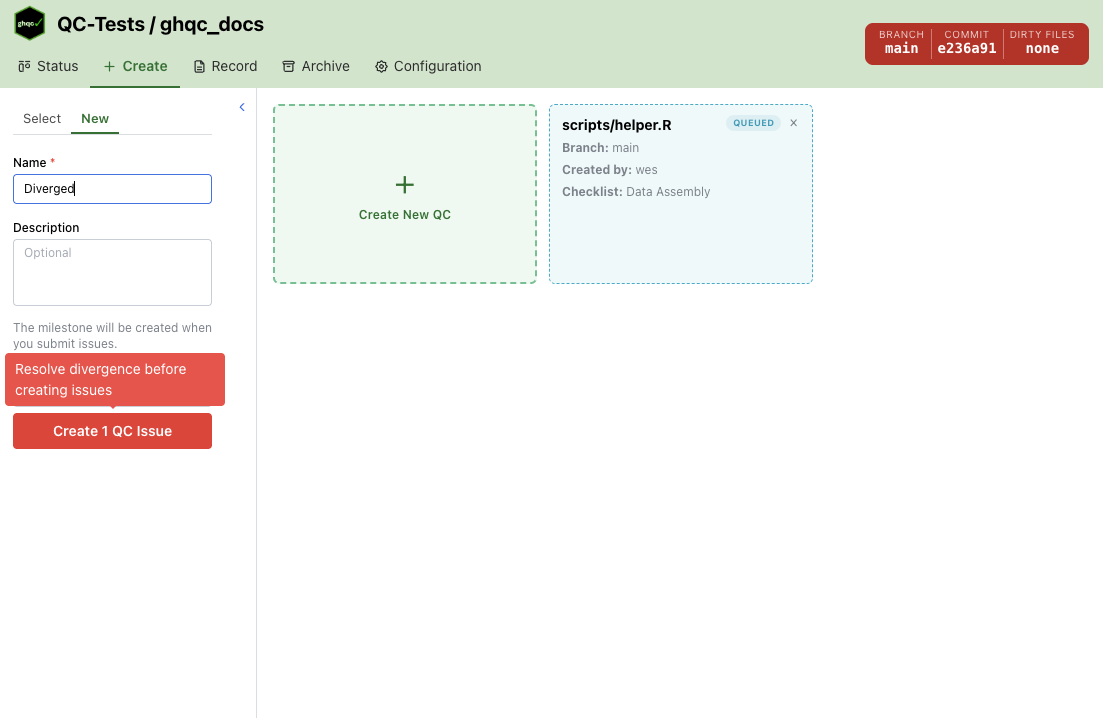
Git state from Git Status also affects the button and tooltip:
- Dirty files — warning only
- Ahead — warning to push first
- Behind — warning to pull first
- Diverged — red warning indicating divergence must be resolved before creating issues
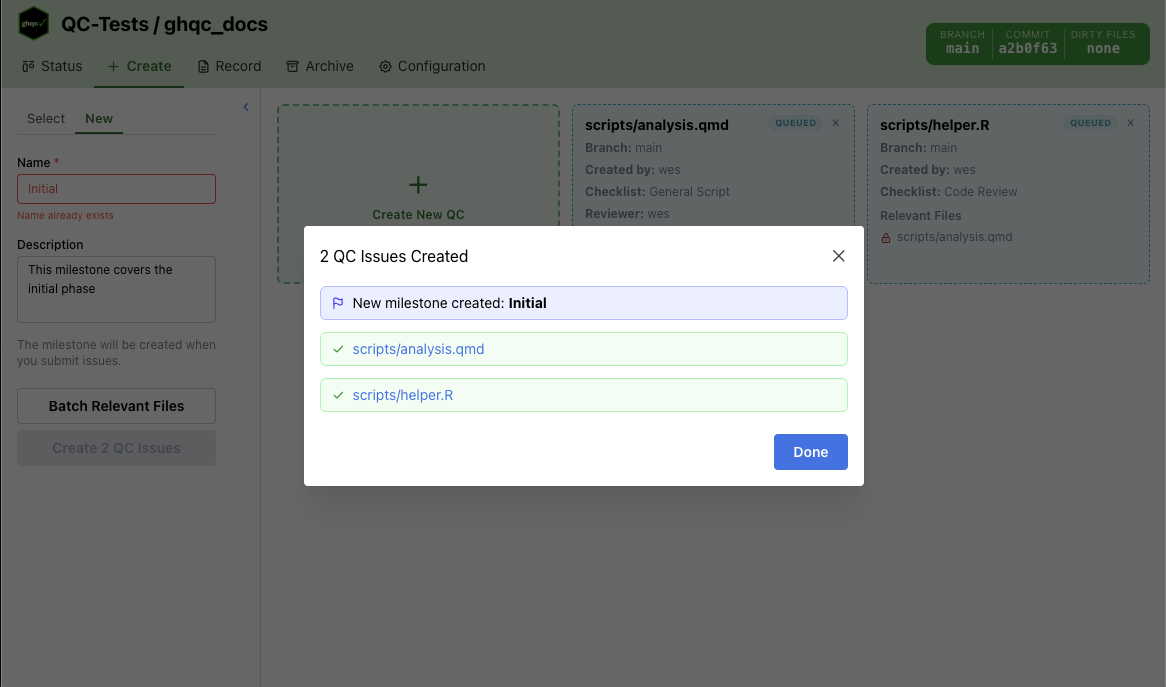
Result Modal
Section titled “Result Modal”Submitting the queue creates the milestone first if needed, then creates all queued QC issues.
The result modal shows:
- whether a new milestone was created
- a link for each created QC issue
- an error message if creation fails
Closing the success modal clears the queue and switches the Create tab to the newly created or selected milestone.