
Archive
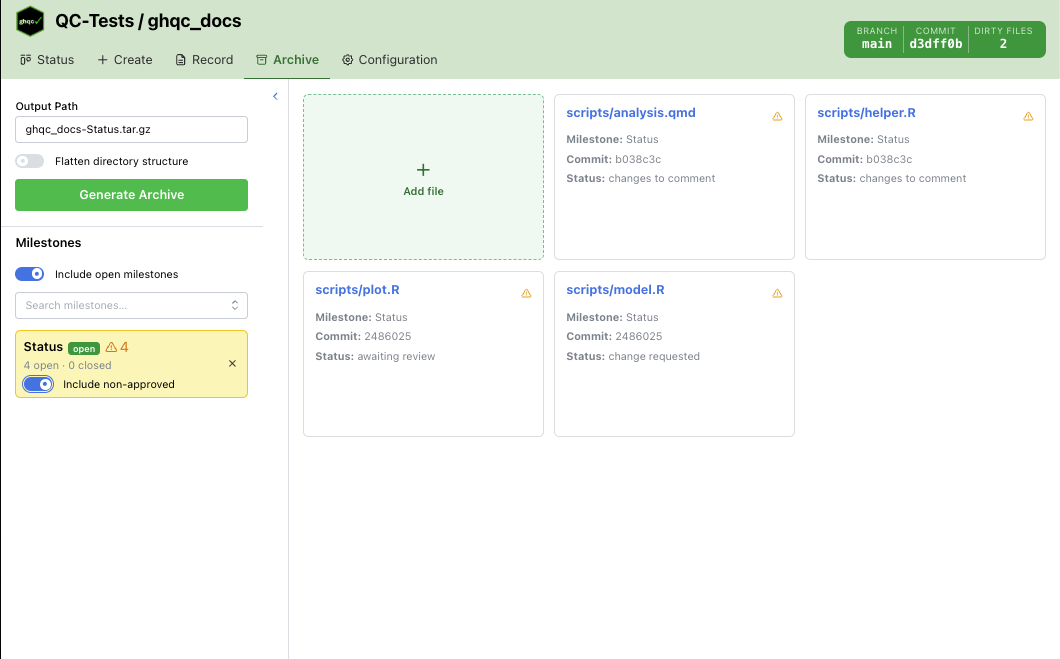
The Archive tab creates a .tar.gz bundle for one or more milestones. It builds the archive from the QC files associated with the selected milestone issues,
then allows manually adding and resolving additional files before generating the final archive.
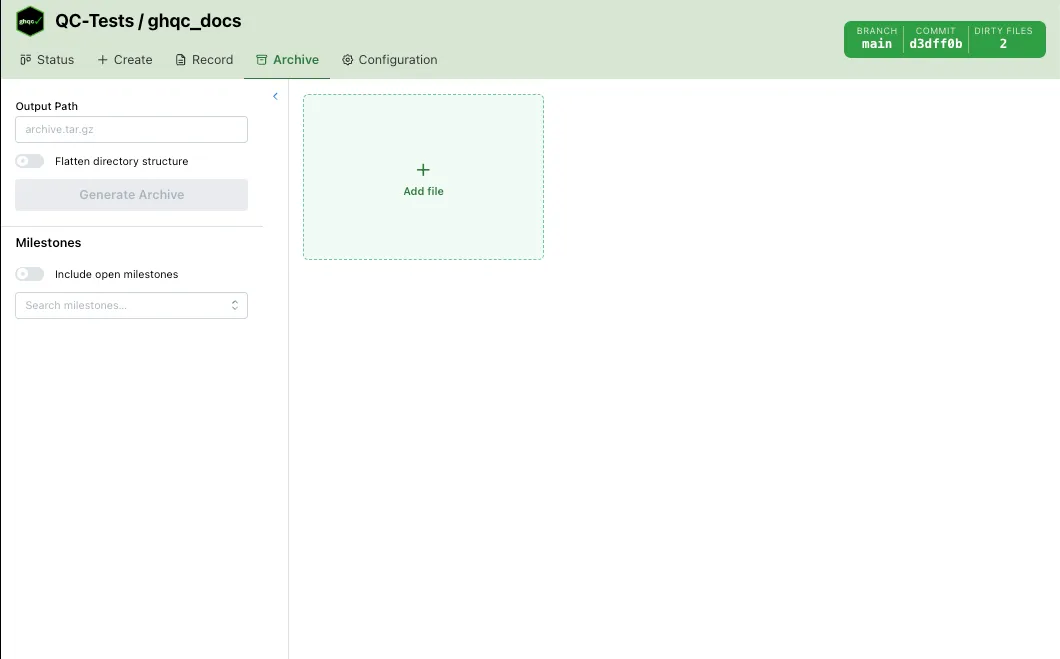
Layout
Section titled “Layout”The Archive tab has two main areas:
- Left sidebar — select milestones, configure archive options, and generate the archive
- Main panel — displays all files which will be included in the archive
The main panel always begins with an Add file card, which can be used to manually add repository files. The remaining cards represent files pulled from the selected milestones or files which have been manually added and resolved.
Milestones
Section titled “Milestones”The milestone picker is a searchable multi-select dropdown.
By default, only closed milestones are shown. Turning on Include open milestones also exposes open milestones in the dropdown.
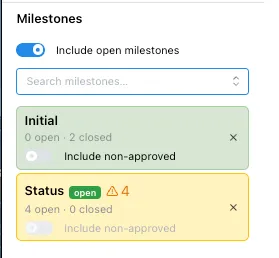
Each selected milestone becomes a status card showing:
- milestone name
- open and closed issue counts
- whether the milestone is still open
- whether issue-status loading is still in progress
- warnings or errors that affect record generation
Milestone Card States
Section titled “Milestone Card States”Selected milestone cards use color and icons to communicate status:
- Green — issue data loaded successfully
- Yellow — one or more issues in the milestone are not approved
- Red — issue listing failed, or one or more issue status fetches failed
An open milestone also shows an indicator explaining that the archive may be incomplete.
Include Non-Approved
Section titled “Include Non-Approved”If a milestone contains unapproved issues, its card includes an Include non-approved toggle.
- Off — only approved milestone issues are included
- On — approved and non-approved issues from that milestone are included
This toggle is disabled if enabling it would create file conflicts with the other selected milestones.
Archive File Panel
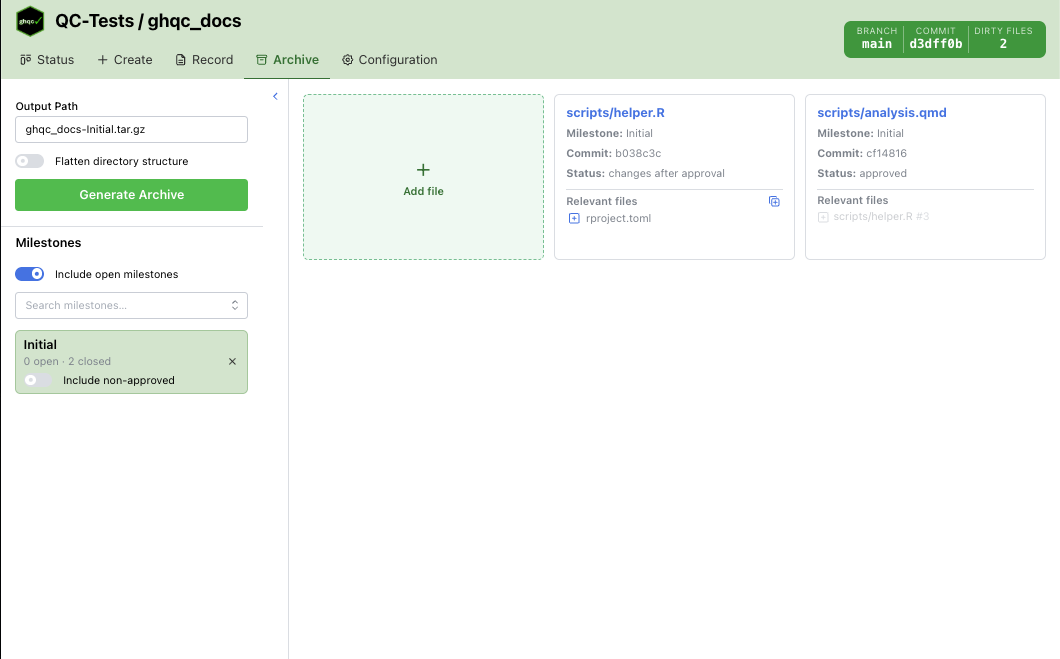
Section titled “Archive File Panel”The main panel shows one card per visible archive file.
Milestone Issue Cards
Section titled “Milestone Issue Cards”Each visible milestone issue card shows:
- file path, linking to the GitHub issue
- milestone name
- the commit that will be archived
- the QC status
- relevant files attached to that issue
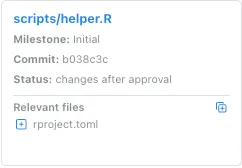
For milestone issue files, the archived commit is the approved commit when one exists; otherwise it falls back to the latest commit.
Relevant Files
Section titled “Relevant Files”Issue cards can expose a Relevant files section.
From that section you can:
- add a single relevant file to the archive
- add all unclaimed relevant files at once
Relevant files that are already present in the archive are greyed out and cannot be added again.
Including Non-Approved Issues
Section titled “Including Non-Approved Issues”If Include non-approved is enabled for a milestone, issue cards for non-approved files are also shown in the archive panel. These cards show a warning icon but are treated the same as other archive files when generating the archive.
Manually Added Files
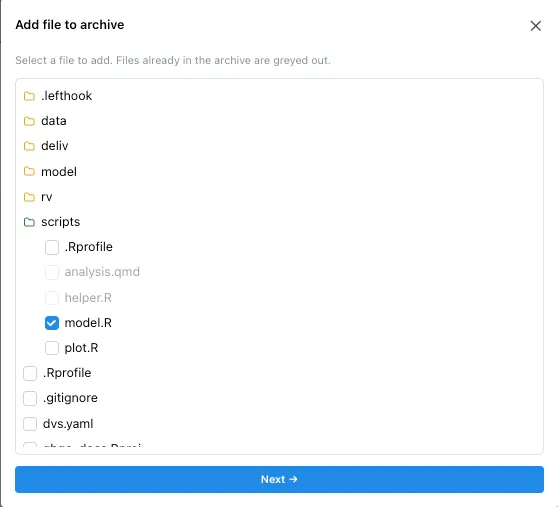
Section titled “Manually Added Files”Clicking Add file opens a modal for adding any repository file to the archive.
First, select the file to include in the archive, then resolve the file commit.
Files already present in the archive are greyed out in the picker and cannot be added again.
Resolving a File
Section titled “Resolving a File”Every manually added file or relevant file not associated with an issue must resolve to a specific commit before archive generation.
Unresolved files appear as yellow cards with Commit not yet selected labels. These block archive generation until resolved. Resolved files appear as regular cards, showing the selected commit or issue information.
There are options:
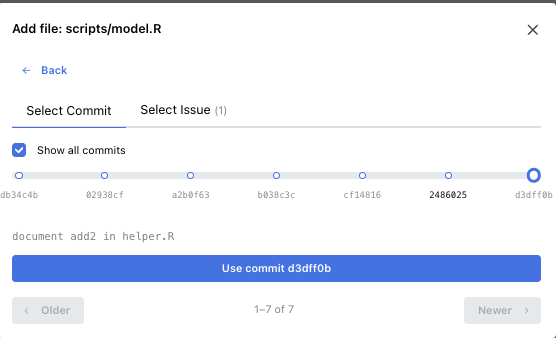
Commit Selection
Section titled “Commit Selection”Resolve the file by selecting a commit from which the file content should be included.
If a relevant file is added that is not tied to an issue, can select either a commit OR an issue.
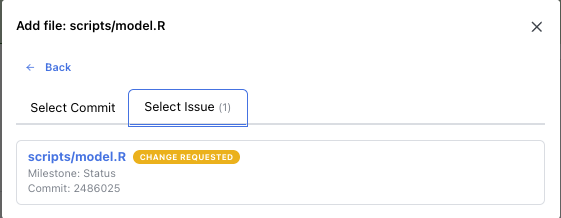
Issue Selection
Section titled “Issue Selection”Resolve the file from an issue. The archive uses that issue’s approved commit or latest commit.
If a relevant file is added that is tied to an issue, the file is automatically back by the issue.
Files added from QC issues can also expose their own relevant files, which allows building out the archive from issue relationships.
Output Path
Section titled “Output Path”The output path is auto-filled from the repository name and the milestones that currently contribute visible files.
The default filename is:
<repo-name>-<milestone-names>.tar.gzIf you manually edit the field, it becomes custom and shows a reset button to restore the default name.
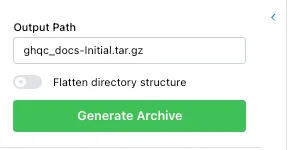
Flatten Directory Structure
Section titled “Flatten Directory Structure”The sidebar includes a Flatten directory structure switch.
- Off — preserve repository paths inside the archive
- On — place all archived files at the archive root using only their basenames
Flattening is allowed only when no two included files would share the same basename.
If basename collisions exist:
- the flatten switch is disabled
- hovering it shows the colliding filenames
When flattening is enabled, basename-based claiming rules apply across the UI:
- milestone selection can block new milestones that would collide by basename
- relevant files with colliding basenames are greyed out
- files in the add-file modal with colliding basenames are greyed out
Generate Behavior
Section titled “Generate Behavior”The Generate Archive button is disabled until all of the following are true:
- at least one file is visible in the archive panel
- the output path is non-empty
- milestone status loading is complete
- every manually added plain file has been resolved to a commit
Clicking Generate Archive writes the archive using:
- all visible milestone issue files
- all resolved manually added files
- the current flatten setting
After generation, the tab shows either:
- a green success alert with the written archive path
- a red error alert if archive generation fails