Comments
Clicking any issue card in the QC Status tab opens a detail panel for that issue. The panel displays a summary of the issue and provides four action tabs — Notify, Review, Approve, and Unapprove — each of which posts a comment to the corresponding GitHub issue.
The default tab shown when the panel opens depends on the issue’s current QC state.
Common Fields
Section titled “Common Fields”While the detail panel for an issue has 4 action tabs, the content on each remains similar. The common fields are described below.
Issue Summary
Section titled “Issue Summary”The top of the panel shows a read-only summary of the issue:
- Title — links directly to the GitHub issue
- Branch — the branch the issue is tracked against
- Reviewers — assigned reviewers, if any
- Status — the current QC state
- Checklist progress — completed vs. total checklist items, if a checklist is attached
- Blocking QCs — approval status of any configured blocking issues
Commit History
Section titled “Commit History”All action tabs, except Unapprove, display a commit slider representing the commit history for the tracked file and select the relevant commit(s).
Commits are either black or gray, indicating whether they change the file or not, respectively.
In addition, above the commits are dots which indicate what type of comment, if any, was posted at that commit.
| Color | Meaning |
|---|---|
| Blue | Initial commit — no comment posted |
| Yellow | Notification posted |
| Orange | Review posted |
| Green | Approved |
Notify
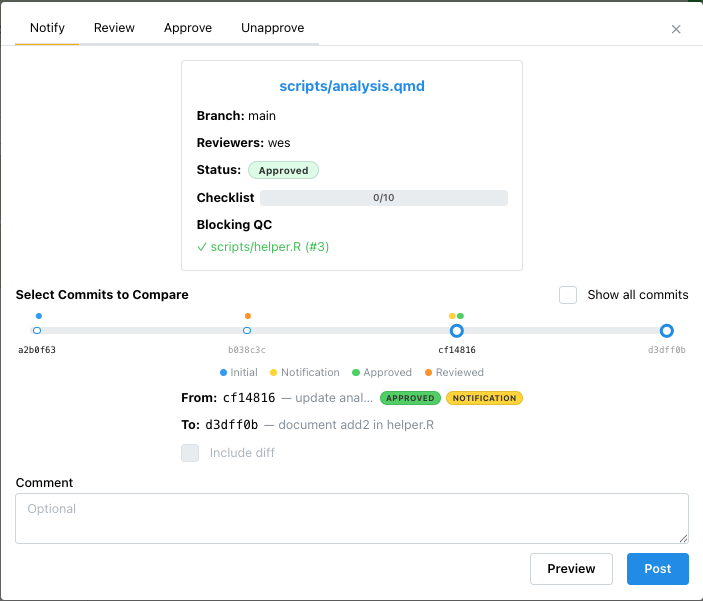
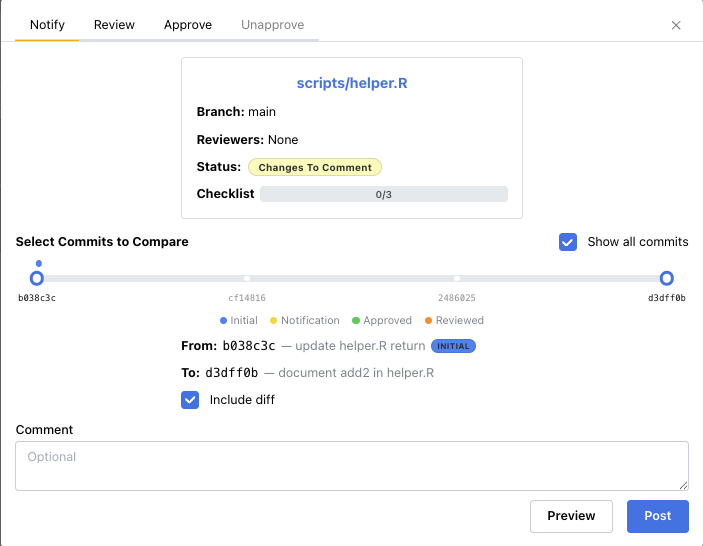
Section titled “Notify”The Notify tab posts a comment to the GitHub issue documenting changes between two commits. Use this to inform the reviewer that the file has been updated and is ready for another look.
Default tab for: Changes to Notify, Findings to Address
Fields
Section titled “Fields”- From / To — select the commit range to compare using two independent sliders along the commit history
- Show all commits — by default only relevant commits are shown; check this to include all commits in the range selectors
- Include diff — attach the file diff between the selected commits to the comment; disabled if the selected commits are identical
- Comment — optional free-text note to include with the notification
Actions
Section titled “Actions”- Preview — opens a modal showing the rendered comment before posting
- Post — posts the notification comment to GitHub and refreshes the issue status
Review
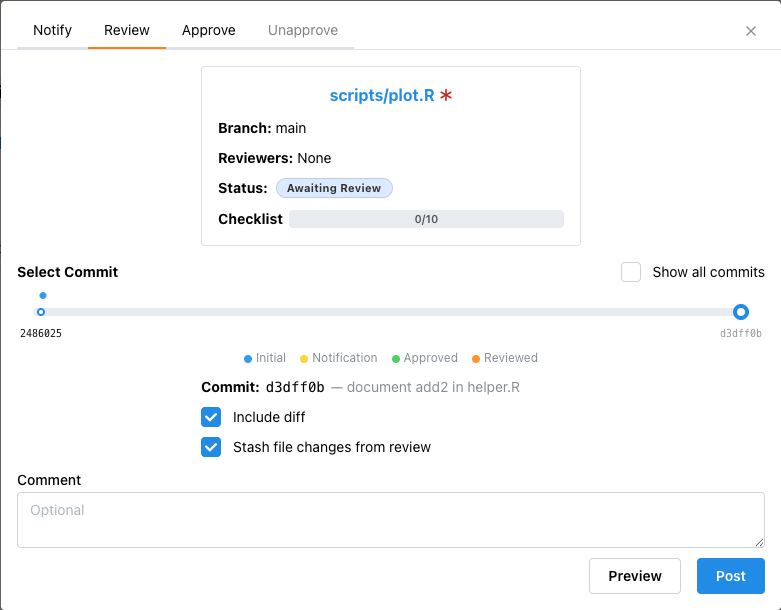
Section titled “Review”The Review tab posts a review comment on a specific commit. Use this when you have examined the file at a given commit and want to record your findings or request changes.
Default tab for: Ready for Review when the file is dirty
Fields
Section titled “Fields”- Commit — select the commit being reviewed using a slider along the commit history
- Show all commits — include all commits in the selector, not just relevant ones
- Include diff — attach the local working directory diff to the comment; disabled if there are no local changes for the file
- Stash file changes from review — when the file is dirty, controls whether
ghqcstores the local review edits in a Git stash after the review comment is posted - Comment — optional free-text note
Actions
Section titled “Actions”- Preview — opens a modal showing the rendered comment before posting
- Post — posts the review comment to GitHub, refreshes the issue status, and shows the stash result message in the confirmation modal
By default, the stash checkbox is enabled when the file has local review edits.
That lets ghqc clear the working copy of the reviewed file while still preserving those edits for later recovery.
Approve
Section titled “Approve”The Approve tab approves the issue and closes it on GitHub. Use this when the file meets all QC requirements at the selected commit.
Default tab for: Ready for Review when the file is clean
Fields
Section titled “Fields”- Commit — select the commit being approved
- Show all commits — include all commits in the selector
- Comment — optional free-text note; becomes required if overriding blocking QCs (see below)
Blocking QCs
Section titled “Blocking QCs”If any configured blocking QC issues are not yet approved, an alert is shown. You can check Override and approve anyway to proceed, but a note explaining the override is then required.
Actions
Section titled “Actions”- Preview — opens a modal showing the rendered comment before posting
- Approve — posts the approval comment, closes the issue on GitHub, and refreshes the issue status; a confirmation modal shows a link to the closed issue
Unapprove
Section titled “Unapprove”The Unapprove tab reverses a previous approval, reopening the issue on GitHub. Use this when a file that was previously approved needs to re-enter the review workflow.
Default tab for: Approved
The tab has two modes depending on whether blocking issues is available for your GitHub instance.
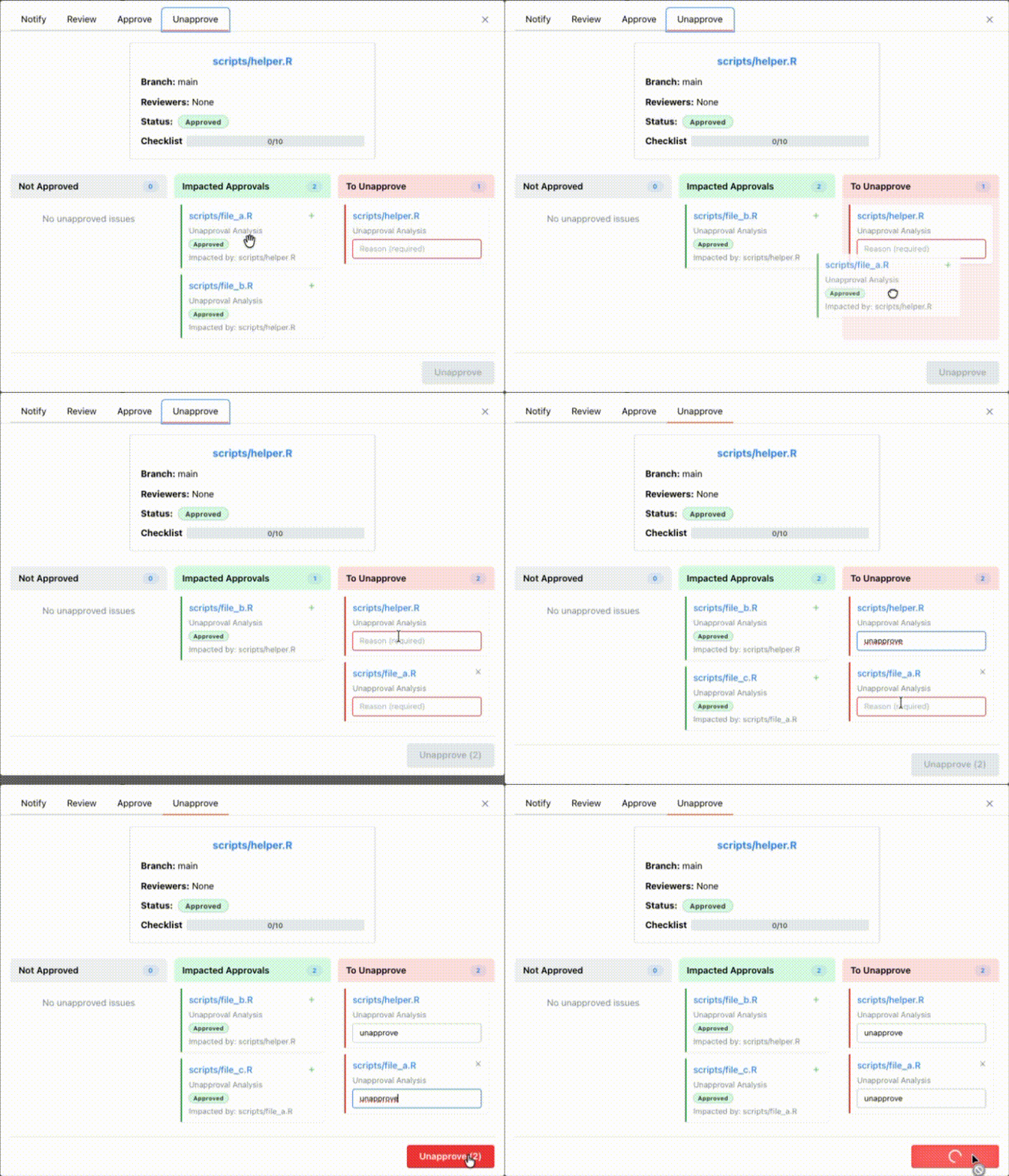
When impact analysis is available, the tab displays a three-column board showing which other approved QC issues would be affected by this unapproval.
- Not Approved — issues (including this one) that are already unapproved; shown for context only
- Impacted Approvals — approved QC issues that depend on this issue and would be affected; drag any card into To Unapprove to include it
- To Unapprove — issues that will be unapproved along with this one; drag a card back to Impacted Approvals to exclude it
The root issue (the one you clicked) is always included in To Unapprove and cannot be removed.
Each issue in To Unapprove requires a Reason — a required text field explaining why that approval is being reversed. The Unapprove button shows a count when more than one issue is selected (e.g. Unapprove (3)) and is disabled until every selected issue has a non-empty reason.
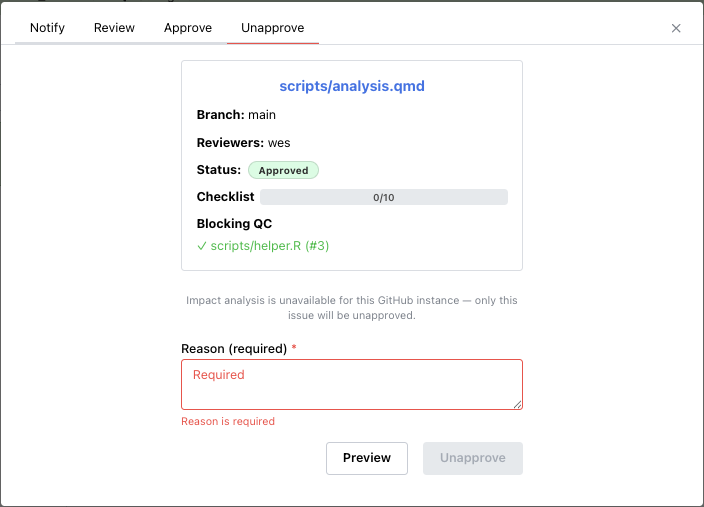
When the impact analysis endpoint is unavailable for your GitHub instance, a simplified form is shown instead:
Impact analysis is unavailable for this GitHub instance — only this issue will be unapproved.
- Reason (required) — a required explanation for why the approval is being reversed
- Preview — opens a modal showing the rendered comment before posting
Only the current issue is unapproved in this mode; cascading unapprovals are not performed.
Actions
Section titled “Actions”- Preview — available in both modes; opens a modal showing the rendered comment before posting
- Unapprove — posts the unapproval comment(s), reopens the affected issue(s) on GitHub, and shows a result modal with links to each unapproved issue