
QC Record
GitHub was chosen as the hub for the QC process to centralize the files, changes, and communication between author and reviewer in one accessible, persistent location. But sometimes, it is necessary to record the QC history into an exportable file.
1. Launch the Record App
Section titled “1. Launch the Record App”We will launch the app in one of two ways:
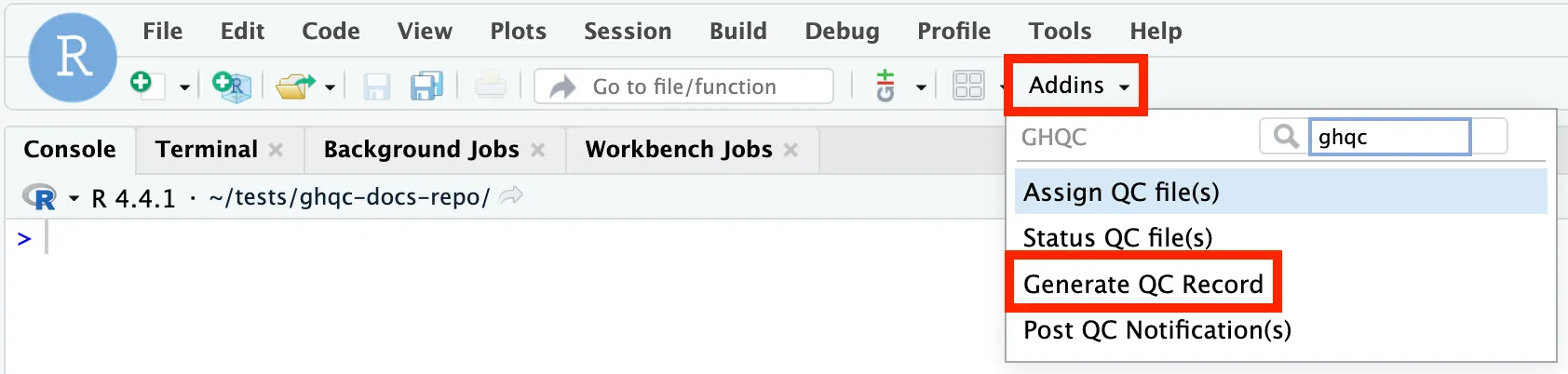
library(ghqc)ghqc_record_app()Using the Addins dropdown in the RStudio navigation bar, search for ghqc, then select “Post QC Notification(s)”.
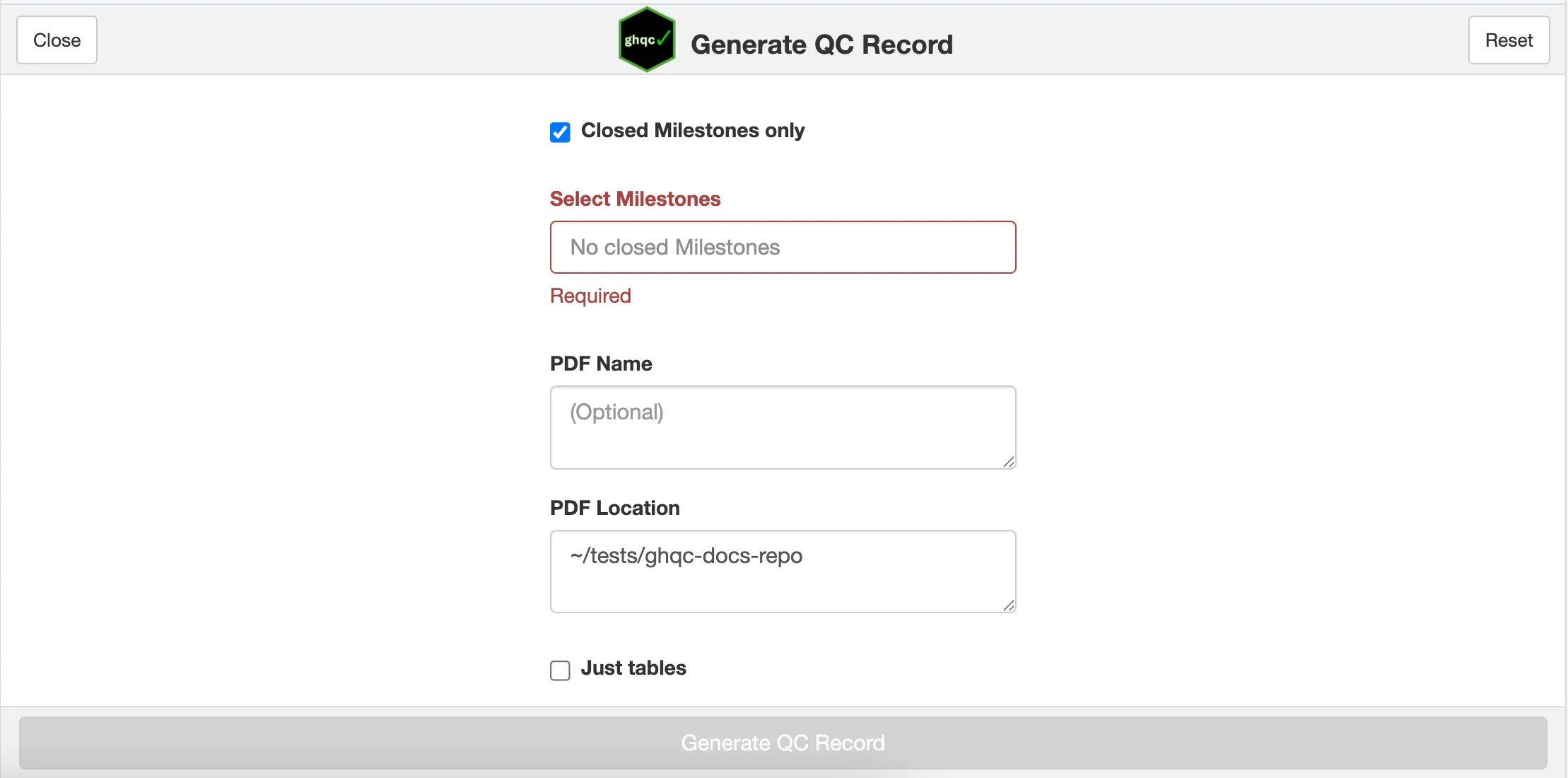
The app will then launch in your viewer panel.
2. Configure Record
Section titled “2. Configure Record”There are 5 ways to configure the QC record:
Closed Milestone Only
Section titled “Closed Milestone Only”Records use milestones to collect what should be added to the record. Since a record is typically only created at the end of a QC, the default is to only include closed milestones as options.
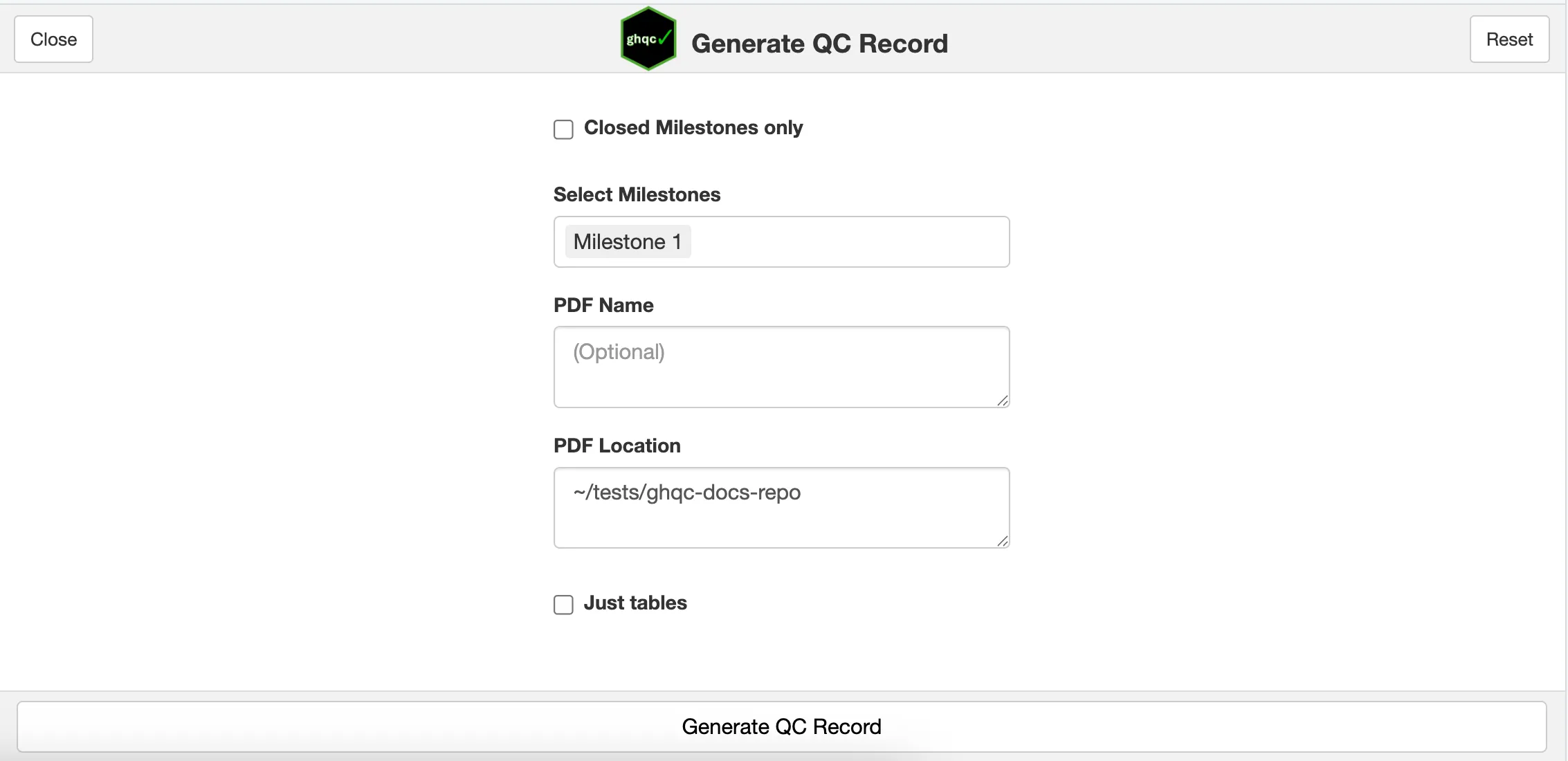
In our example, we only approved the QC of one of our files, and did not close the Milestone, therefore we have to uncheck the Closed Milestones only checkbox.
Select Milestones
Section titled “Select Milestones”The Record App allows users to create one report for as many milestones as desired. We will select our created Milestone 1.
PDF Name
Section titled “PDF Name”By default, the pdf name will default to {repo}-{milestone names}.
In this example, we’ll leave it as blank and expect our PDF name to be “ghqc-docs-repo-Milestone-1.pdf”.
PDF location
Section titled “PDF location”By default, the pdf will be created and saved to the project root. For this example, we will leave this as is.
Just tables
Section titled “Just tables”The record contains summary tables for all selected milestones and for issues in each milestone. Additionally, it reads in the issues and their comments and includes that within the report body.
Just tables will only include the summary tables and not the issue content.
After configuration we have the following set-up:
3. Generate QC Record
Section titled “3. Generate QC Record”After selecting Generate QC Record, we will have a pop-up warning indicating we have open milestones and incomplete/unapproved issues.
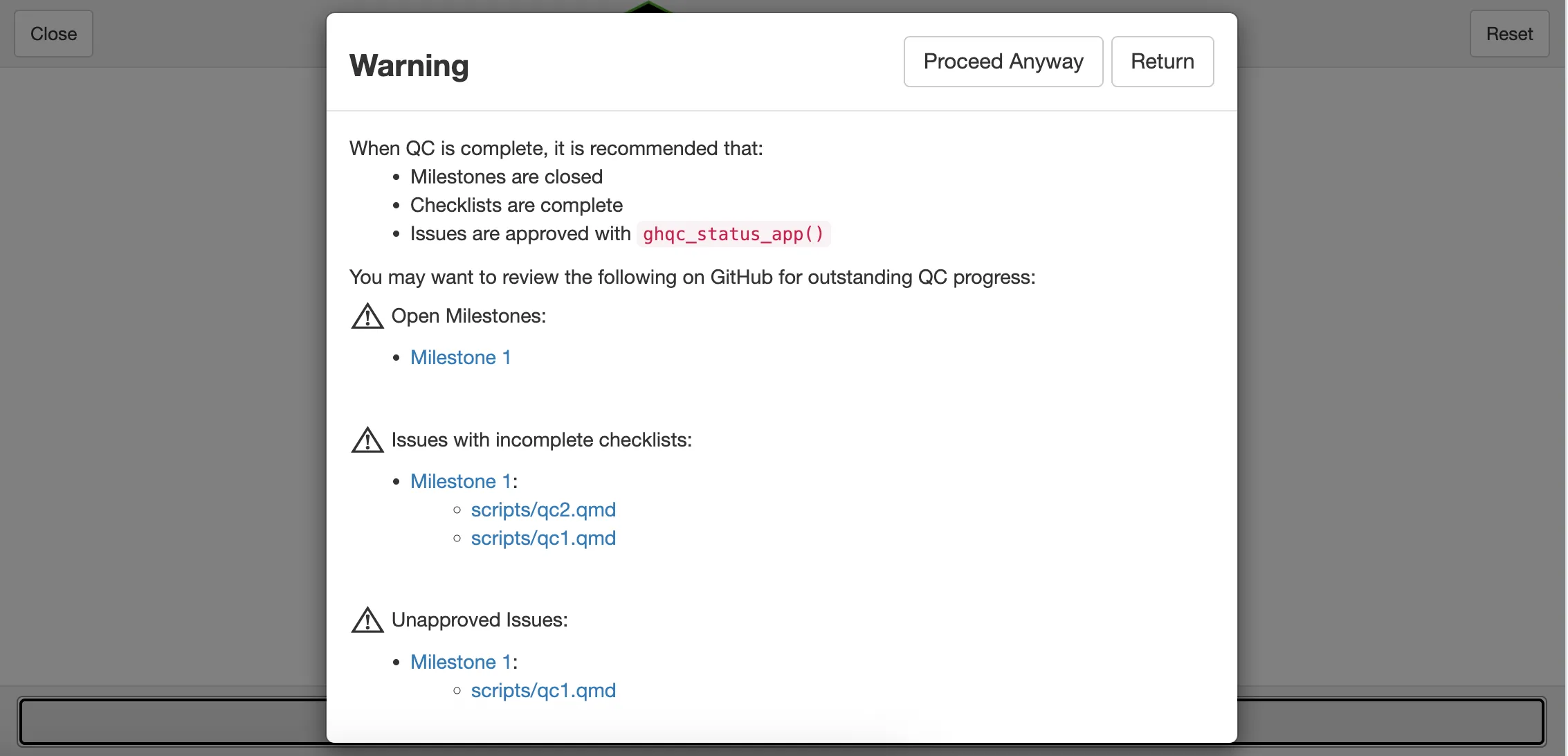
Typically, these should be addressed before continuing to ensure the QC has been completed, but we will Proceed Anyway.
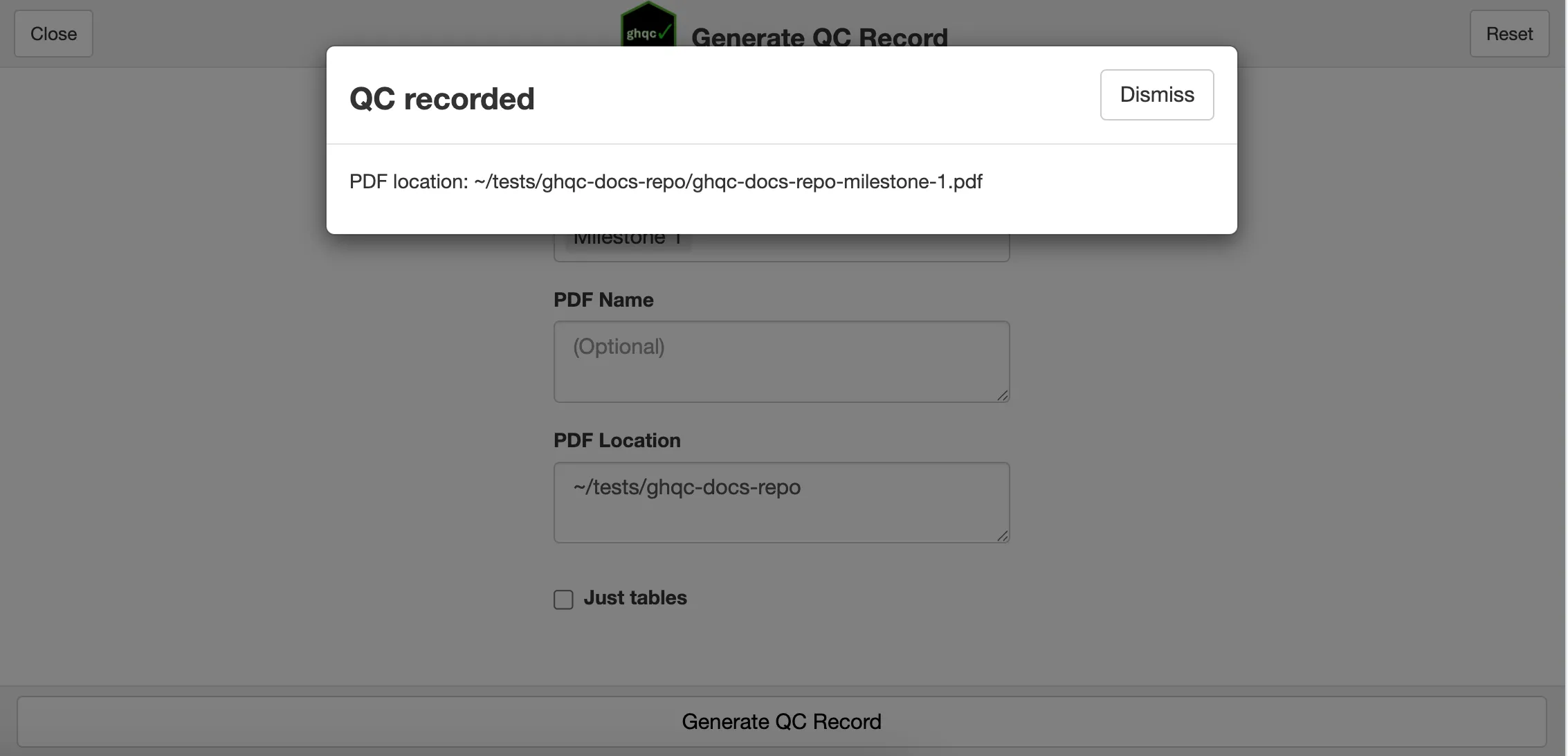
The record will then be generated and the path to the rendered record will be provided.
4. QC Record Preview
Section titled “4. QC Record Preview”As mentioned in Just tables, the record contains both summary tables and the content of each issue.